
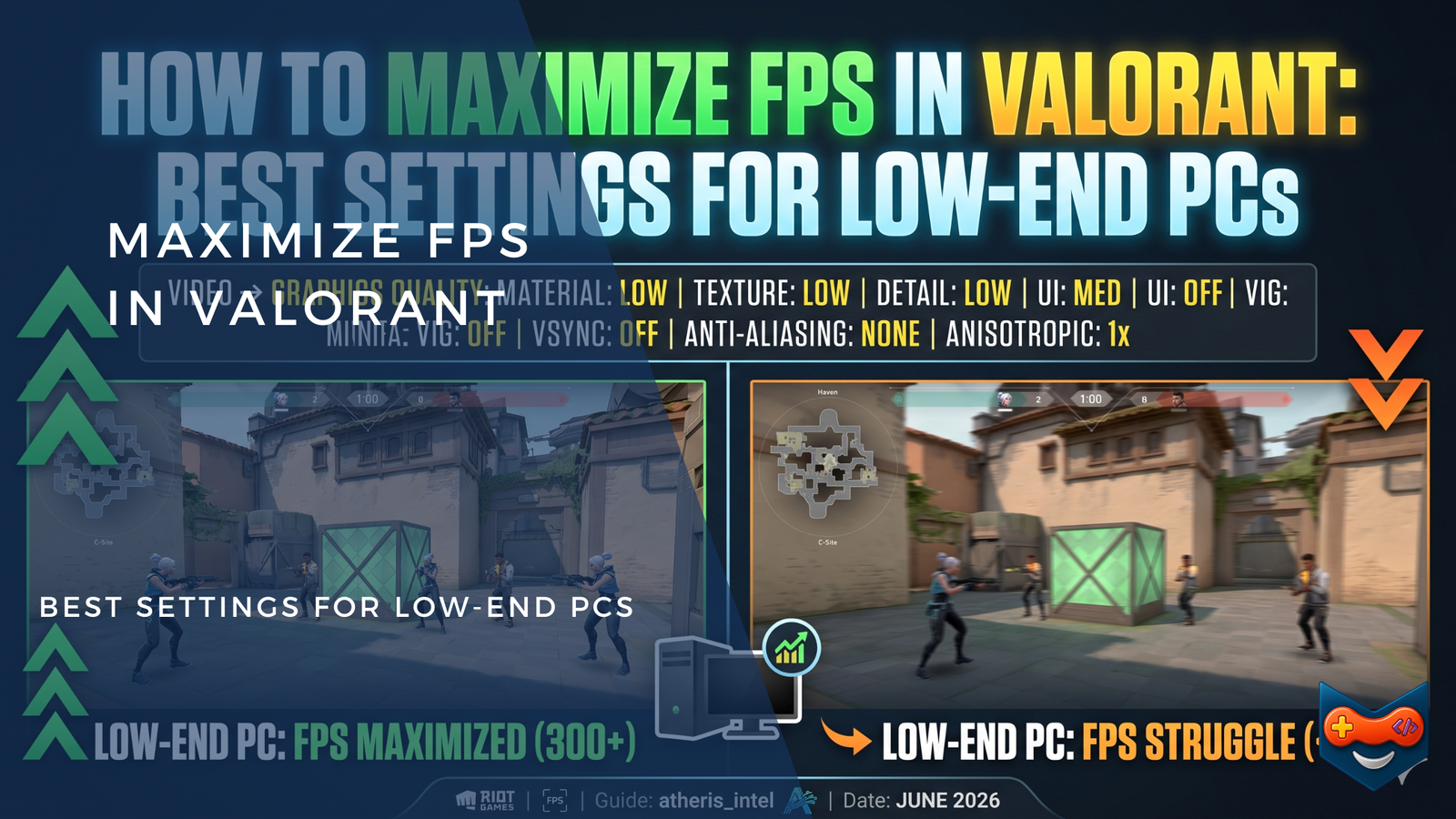
In tactical shooters like Valorant, frames per second (FPS) and input latency dictate whether you win or lose a gunfight. Running the game smoothly is non-negotiable if you want to climb the competitive ladder. While Riot Games optimized Valorant to run on a wide variety of hardware, low-end PCs and older laptops can still suffer from intense frame drops, micro-stutters, and severe input lag during chaotic agent utility dumps.
If you are struggling to maintain a stable frame rate, this ultimate optimization guide will walk you through the exact in-game settings, Windows tweaks, and hardware optimizations required to maximize your FPS.
1. The Core Windows Tweaks for High Performance
Before opening the game, you need to ensure your operating system is routing all available system resources directly to Valorant. Because the game is heavily dependent on your processor (CPU), minimizing background Windows tasks yields massive performance returns.
1.Enable Windows Game Mode:Requires 1 minute.
Open your Windows Search bar, type Game Mode settings, and open it. Toggle Game Mode to On. This tells Windows to prioritize hardware resources for active video games while pausing background updates.
2.Configure High-Performance GPU Routing:Requires 2 minutes.
Search for Graphics settings in Windows. Click Browse and navigate to your Valorant installation folder (usually found under Riot Games > VALORANT > live > ShooterGame > Binaries > Win64). Select VALORANT-Win64-Shipping.exe and click Add. Once added, click Options, choose High performance, and click Save.
3.Optimize Your System Power Plan:Requires 1 minute.
Open the Control Panel, navigate to Power Options, and change your plan to High Performance or Ultimate Performance. This prevents your CPU from throttling down to save power mid-match.
2. Best In-Game Video Settings for Low-End PCs
To achieve maximum frame rates and the lowest possible input delay, you must stripping away non-essential visual eye candy. This competitive baseline mirrors what professional players use to clear screen clutter and focus entirely on enemy silhouettes.
General Video Settings
- Display Mode: Fullscreen. Never use Windowed or Windowed Fullscreen. True Fullscreen grants the game exclusive control over your display interface, drastically lowering input lag.
- Resolution: Native (e.g., 1920×1080) or Lower. If your frame rate drops below your monitor’s refresh rate, scale the resolution down to 1280×720 (16:9). This reduces the pixel strain on your graphics card and provides an instant 20% to 30% performance boost.
- Limit FPS Toggles: Off. Ensure “Limit FPS Always” is disabled. Unlocking your frame rate ensures your hardware renders the freshest possible frames, even if your monitor cannot fully display them all.
3. Graphics Quality Optimization Matrix
Configure your Graphics Quality tab using the layout below. These adjustments strip away heavy post-processing effects while maintaining absolute visual clarity for long-range duels.
| Setting Name | Recommended Value | Competitive & Performance Impact |
| Multithreaded Rendering | ON | Critical. Spreads the rendering load across multiple CPU cores. Turning this off can cut your frame rate in half. |
| Material Quality | Low | Removes distracting reflections and shiny surface details. |
| Texture Quality | Low | Saves vital VRAM on older graphics cards to prevent stuttering. |
| Detail Quality | Low | Eliminates extra environmental foliage and clutter, making enemies easier to spot. |
| UI Quality | Low | Lowers the rendering cost of the HUD with zero impact on readability. |
| Vignette & V-Sync | OFF | Vignette darkens your screen edges. V-Sync introduces severe, game-ending input lag. Keep both off. |
| Anti-Aliasing | None or MSAA 2x | Set to None for max FPS. If lines look too jagged at long distances, use MSAA 2x for minimal frame cost. |
| Anisotropic Filtering | 1x or 2x | Dictates texture sharpness at sharp angles. Keep low to conserve resources. |
| Improve Clarity | Off | Can cause unpredictable frame drops on low-tier systems. |
| Experimental Sharpening | Off | Purely post-processing. Use your monitor’s physical settings if you need a sharper image. |
| Bloom, Distortion & Shadows | OFF | These options add heavy glowing visual artifacts, screen warping, and player model shadows that severely drain system performance. |
4. The NVIDIA Reflex Advantage
If your system utilizes an NVIDIA graphics card, you have access to one of the most effective latency reduction tools available.
NVIDIA Reflex Low Latency: Set this option to On + Boost.
Selecting “On” reduces the game’s rendering queue to instantly lower system latency. Adding the “Boost” modifier forces your graphics card to keep its clock speeds high even in light scenes (like the buy phase or when holding a passive angle), guaranteeing consistent frametimes when an engagement suddenly erupts.
Note for AMD Users: While Valorant lacks native in-game AMD Anti-Lag integration, you can achieve a similar effect by opening your AMD Software: Adrenalin Edition application and turning on Radeon Anti-Lag globally or specifically for the Valorant profile.
5. Clean Up Your Gameplay HUD Settings
Many players do not realize that complex user interface overlays tax the CPU. To scrape together every last frame, navigate to your Stats settings tab.
Set Client FPS to Text Only or Hide the graph versions of performance metrics entirely. Rendering live, updating performance graphs requires processing power that your low-end machine should be using to track crosshair inputs instead.
Conclusion: Hardware Upkeep Matters
If you have applied all of these settings and still face frame drops, make sure your computer components are physically clean. Thermal throttling caused by dust buildup inside laptop or desktop fans will force your hardware to slow down to prevent overheating, killing your frame rates regardless of your in-game setup. Clean your system, keep your drivers updated, and enjoy a faster, smoother competitive experience.